From Disk to Files: Understanding GPT, APFS, Containers, and Volumes on macOS
Published
Updated
The first time you inspect storage on macOS, several terms tend to blur together: disk, partition, container, volume, file system, and mount point. They all sound like parts of a drive, but they live at different layers.
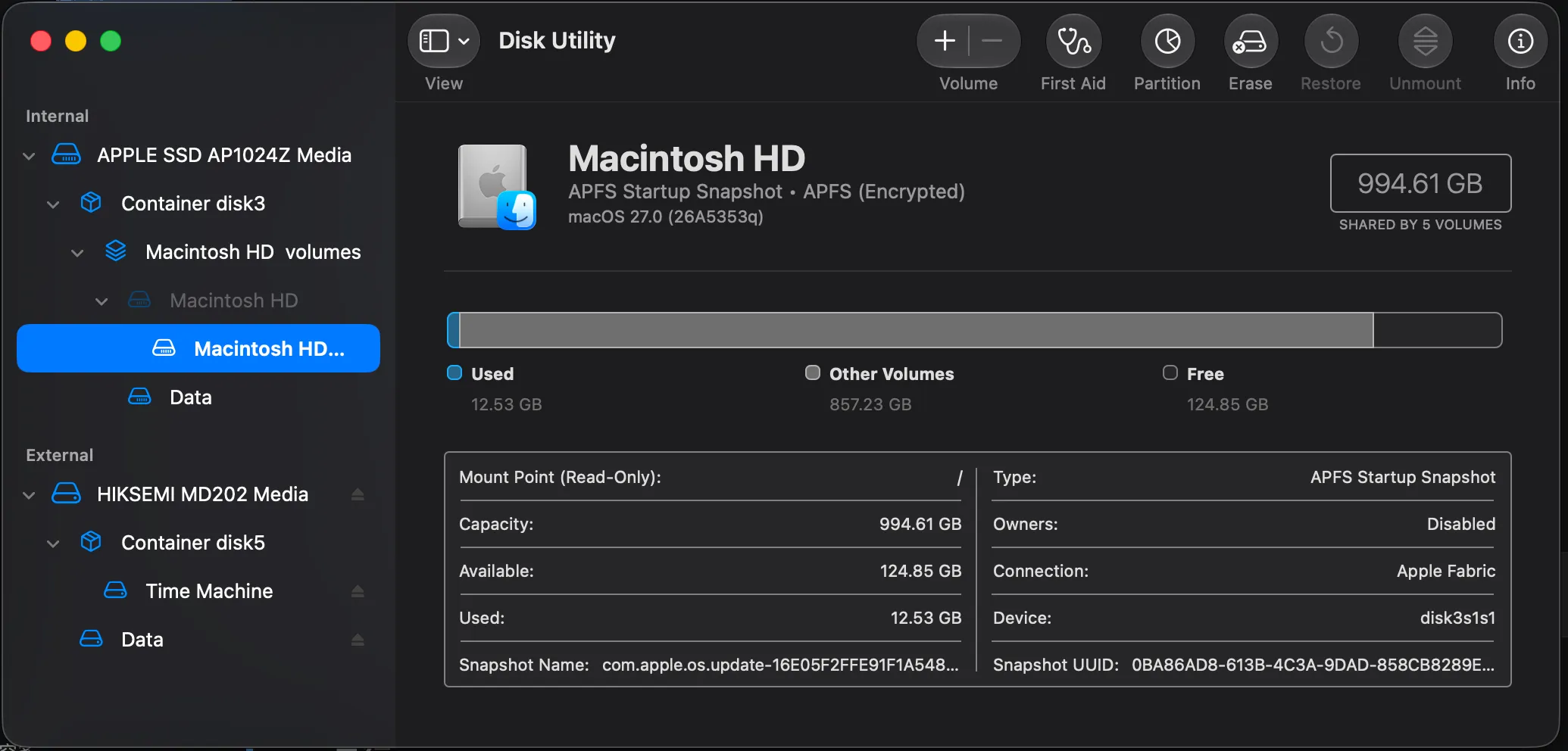
The main source of confusion is that older storage layouts often looked like “one partition equals one volume.” Modern macOS uses APFS by default, and APFS adds a container layer between partitions and volumes. A single APFS container can hold multiple volumes, and those volumes share the same pool of free space.
For a typical macOS system disk, the path looks like this:
Physical disk
  -> GPT partition table
  -> Partition
  -> APFS container
  -> APFS volumes
  -> Files and directories
For a simple exFAT external drive, the structure is usually flatter:
Physical disk
  -> GPT / MBR partition table
  -> Partition
  -> exFAT file system volume
  -> Files and directories
Once these two paths are clear, names like Macintosh HD, Macintosh HD - Data, Preboot, Recovery, VM, /dev/disk0, /dev/disk0s2, and disk3 stop looking like a random pile of devices.
Physical Disks
A physical disk is the actual storage device: the internal SSD, an external hard drive, a USB drive, an SD card, or an NVMe drive.
On macOS, it may appear as:
/dev/disk0
/dev/disk4
These names are not stable identities. Plugging in devices, rebooting, or mounting disk images can change the numbering. When you want to inspect the current layout, use:
diskutil listAt the lowest level, a disk is a sequence of addressable blocks. The partition table describes which ranges of those blocks belong to which partitions.
GPT: The Partition Map
GPT is the partition table format commonly used by modern macOS disks. It does not manage files, and it does not know where your documents, photos, or apps are. It only records how the disk is divided.
GPT usually records:
- Where a partition starts.
- Where a partition ends.
- What type the partition is.
- The partition GUID.
- The partition name.
So GPT is a disk-level map. It tells the system “this area is an EFI partition” and “that area is an APFS partition,” but it does not manage the files inside those areas.
MBR still appears on older devices and in some compatibility scenarios. For current Mac system disks and most modern external disks, GPT is the more common layout.
Partitions
A partition is a continuous range of space on a disk.
On macOS, names often look like this:
disk0      the whole disk
disk0s1    partition 1
disk0s2    partition 2
A partition can contain many different things:
- APFS
- HFS+
- exFAT
- FAT32
- NTFS
- Linux ext4
- EFI System Partition
The older mental model is often:
one partition = one file system = one volumeA normal exFAT USB drive often works like this:
GPT partition
  -> exFAT file system
  -> volume named DATA
  -> files
In that situation, partition and volume appear almost identical. APFS is different.
File Systems
A file system defines how files are stored, how directories are organized, how permissions are recorded, and how free space is managed.
Common file systems include:
| File system | Common platform | Notes |
|---|---|---|
| APFS | macOS, iOS, iPadOS | Apple’s modern file system, with space sharing, snapshots, clones, encryption, and more |
| HFS+ | Older macOS versions | Apple’s pre-APFS file system |
| NTFS | Windows | Common for Windows system drives |
| exFAT | Cross-platform | Useful for USB drives and external disks shared between macOS and Windows |
| FAT32 | Older devices | Very compatible, but limited to 4 GB per file |
| ext4 | Linux | Common Linux file system |
| Btrfs | Linux | Supports modern features such as snapshots and checksumming |
| XFS | Linux | Common for large files and server workloads |
The file system affects file naming rules, maximum file size, permissions, snapshots, case sensitivity, journaling, copy-on-write behavior, and more.
On current macOS, APFS is the most important file system to understand. It is not just a format; it also brings containers, shared space, volume groups, and snapshots into daily storage management.
APFS Containers
The key APFS concept is the container.
A GPT partition can be used as APFS physical storage. Inside that storage, macOS creates an APFS container. The container can then hold multiple APFS volumes.
A typical layout looks like this:
Physical disk disk0
  -> GPT partition disk0s2
    -> APFS Container disk3
      -> Macintosh HD
      -> Macintosh HD - Data
      -> Preboot
      -> Recovery
      -> VM
Here, disk3 is not another physical disk. It is a synthesized APFS container device created by macOS.
The major benefit of an APFS container is space sharing. If a 1 TB APFS container holds two volumes, and volume A uses 200 GB while volume B uses 100 GB, the remaining space is not permanently assigned to either volume. It remains free space inside the container and can be allocated to any volume as needed.
That is very different from traditional partitioning. If you split a disk into two fixed 500 GB partitions, unused space in partition A is not automatically available to partition B. APFS containers are more flexible: multiple volumes share the same free space pool.
APFS volumes can still have boundaries when needed. You can set a reserve size to guarantee space, or a quota size to limit how much a volume can allocate.
Volumes
A volume is the logical storage unit that the operating system can mount, name, display, and use for files.
In Finder, names like these are usually volumes:
Macintosh HD
Macintosh HD - Data
Backup
MyDisk
On the command line, external volumes are usually mounted under:
/Volumes/BackupWindows drive letters such as C: and D: can also be understood as volumes. On Linux, paths like /mnt/data or /media/xxx are mount points where volumes become accessible.
So a volume is the usable operating-system-level unit. A partition is a continuous range on a disk. An APFS container is the shared space pool that holds multiple APFS volumes.
Mounting
Mounting means attaching a volume to the operating system’s directory tree. If an external volume is named Backup, macOS usually mounts it at:
/Volumes/BackupWhen a volume is not mounted, it may still exist and its file system may still be intact, but Finder will not show it and you cannot access its files through a normal path.
Useful commands include:
diskutil mount /dev/disk4s2
diskutil unmount /dev/disk4s2
diskutil unmountDisk /dev/disk4
unmount detaches a specific volume or partition. unmountDisk detaches all unmountable volumes on a disk.
Why Macintosh HD and Macintosh HD - Data Are Separate
Starting with macOS Catalina, Apple separated system files from user data. Roughly:
Macintosh HD          system volume
Macintosh HD - Data   data volume
The system volume stores macOS system content. On modern macOS, it is read-only. Starting with macOS Big Sur, it became a Signed System Volume, meaning macOS verifies the integrity of system content. If verification fails, the boot process may stop or require macOS to be reinstalled.
The data volume stores user files, app data, and writable configuration. macOS uses APFS Volume Groups and firmlinks to present the system volume and data volume as one coherent system.
So Finder gives you the feeling of one unified disk, but underneath it, two volumes have different responsibilities:
- The system volume keeps operating system content stable and verifiable.
- The data volume stores user and app-generated writable data.
That is why Macintosh HD - Data should not be treated as a duplicate disk. It is part of the modern macOS file management model.
APFS Volume Groups
An APFS Volume Group is a set of related APFS volumes.
The most common pair is:
Macintosh HD
Macintosh HD - Data
Together, they form the system volume group. This design lets macOS do two things at the same time:
- Keep system content isolated, read-only, and verifiable.
- Keep user data writable and available at familiar paths.
The user sees one system. Internally, macOS knows which content belongs to the system volume and which content comes from the data volume.
Preboot, Recovery, and VM
An APFS system container often contains several system-managed volumes:
Preboot: Stores information needed to boot APFS system volumes.Recovery: Stores the recovery environment for reinstalling macOS, Disk Utility, Terminal, and system recovery.VM: Stores virtual memory, swap files, and sleep-related data.Update: Appears on some macOS versions and participates in system updates.
These volumes are managed by macOS and should not be deleted manually. Preboot and Recovery may look unimportant during normal use, but they matter when the system needs to boot or recover.
Formatting, Erasing, Deleting Volumes, and Deleting Partitions
Disk Utility uses several similar-looking operations, but they happen at different layers.
Formatting usually means creating a new file system on a partition or volume. For example:
diskutil eraseVolume ExFAT DATA /dev/disk4s2This creates an exFAT file system on /dev/disk4s2 and names the volume DATA.
Erasing a whole disk can be much more destructive. If you select an entire physical disk, macOS may rebuild the partition table, create new partitions, create a file system, and create a volume:
diskutil eraseDisk ExFAT DATA GPT /dev/disk4That affects the entire disk and removes the old partition layout.
Deleting an APFS volume is also different from deleting an APFS partition.
After deleting an APFS volume, the freed space returns to the APFS container:
APFS Container
  -> Volume B
  -> Free space inside container
After deleting an APFS partition, the space returns to the GPT layer as unallocated disk space:
GPT
  -> EFI
  -> Free Space
  -> Other Partition
This explains a common surprise: deleting an APFS volume may not create visible unallocated space in the partition map. You removed a volume inside the container, not the GPT partition itself.
Snapshots
APFS supports snapshots. A snapshot records the state of a file system at a point in time. It does not immediately copy every file.
APFS uses copy-on-write. When a snapshot is first created, it uses very little additional space. Later, when files change, old blocks are kept so the snapshot can still see the previous state.
This is part of what makes Time Machine, system update rollback, and recovery workflows efficient.
Snapshots can still consume space. If you delete files but free space does not seem to return immediately, local snapshots are one of the things worth checking, along with Trash, caches, and cloud sync behavior.
EFI Partition
GPT disks often include an EFI System Partition, also called ESP. It usually uses FAT32 and stores UEFI boot-related files.
macOS may create an EFI partition even on some external disks, even if that disk is not actively used for booting. Do not casually delete the EFI partition on a system disk. It is quiet most of the time, but it belongs to the boot chain.
RAID and Volumes
RAID combines multiple disks into a logical storage device. For example:
- RAID 0: Striping for performance, no redundancy.
- RAID 1: Mirroring for redundancy.
- RAID 5: Redundancy with parity.
- RAID 10: Mirroring plus striping.
After RAID is created, the operating system usually sees a new logical disk. That logical disk can still contain a partition table, partitions, file systems, and volumes.
RAID does not replace the file system. It operates below it by combining physical disks into a logical device.
Reading diskutil Output
On macOS, these clues help decode storage output:
| Output | Usually means |
|---|---|
/dev/disk4 |
A whole disk, which may be physical or synthesized |
/dev/disk4s2 |
Partition 2 on disk4 |
GUID_partition_scheme |
The disk uses GPT |
EFI |
EFI System Partition |
Apple_APFS |
A partition used as APFS physical storage |
APFS Container |
APFS container |
APFS Volume |
A volume inside an APFS container |
Free Space |
Unallocated space at the GPT layer |
This command is especially useful for APFS:
diskutil apfs listIt shows APFS containers, volumes, volume groups, snapshots, and related details more clearly than the generic disk list.
The Core Idea
The most important macOS takeaway is:
APFS is not simply "one partition, one volume."
It creates a container inside a partition, then manages multiple shared-space volumes inside that container.
Once that is clear, Macintosh HD, Macintosh HD - Data, Preboot, Recovery, and VM no longer look like mysterious extra drives. They are pieces of the storage model macOS uses to keep the system reliable, recoverable, and easier to manage.